Parking Made Easy in Petone
Paid parking is now in place in parts of Petone. The PayMyPark app can make it faster and easier to manage your parking. These steps are shown on an iPhone. Android steps are similar.
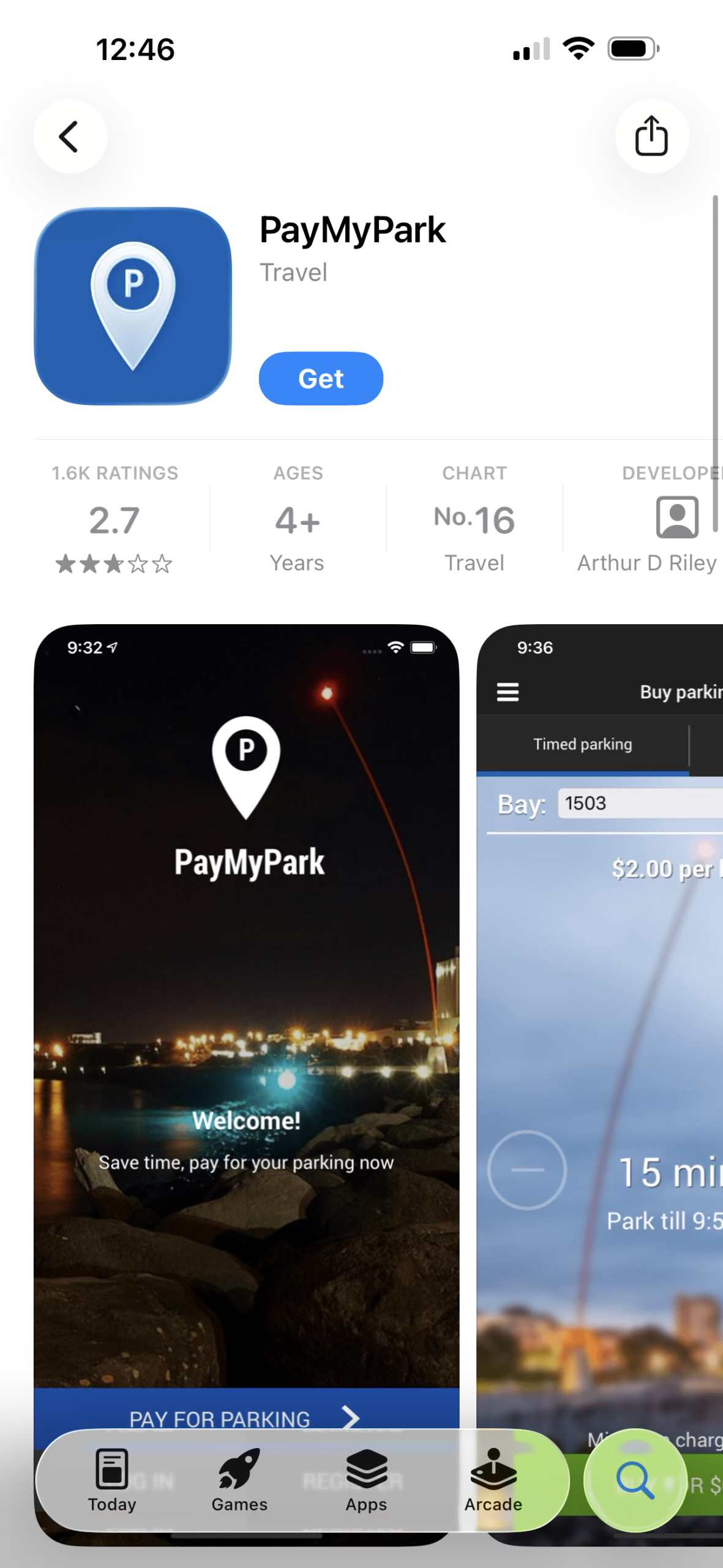
Step 1: Download the app
Open the App Store, search PayMyPark, then tap Get to install.
Step 2: Open the app
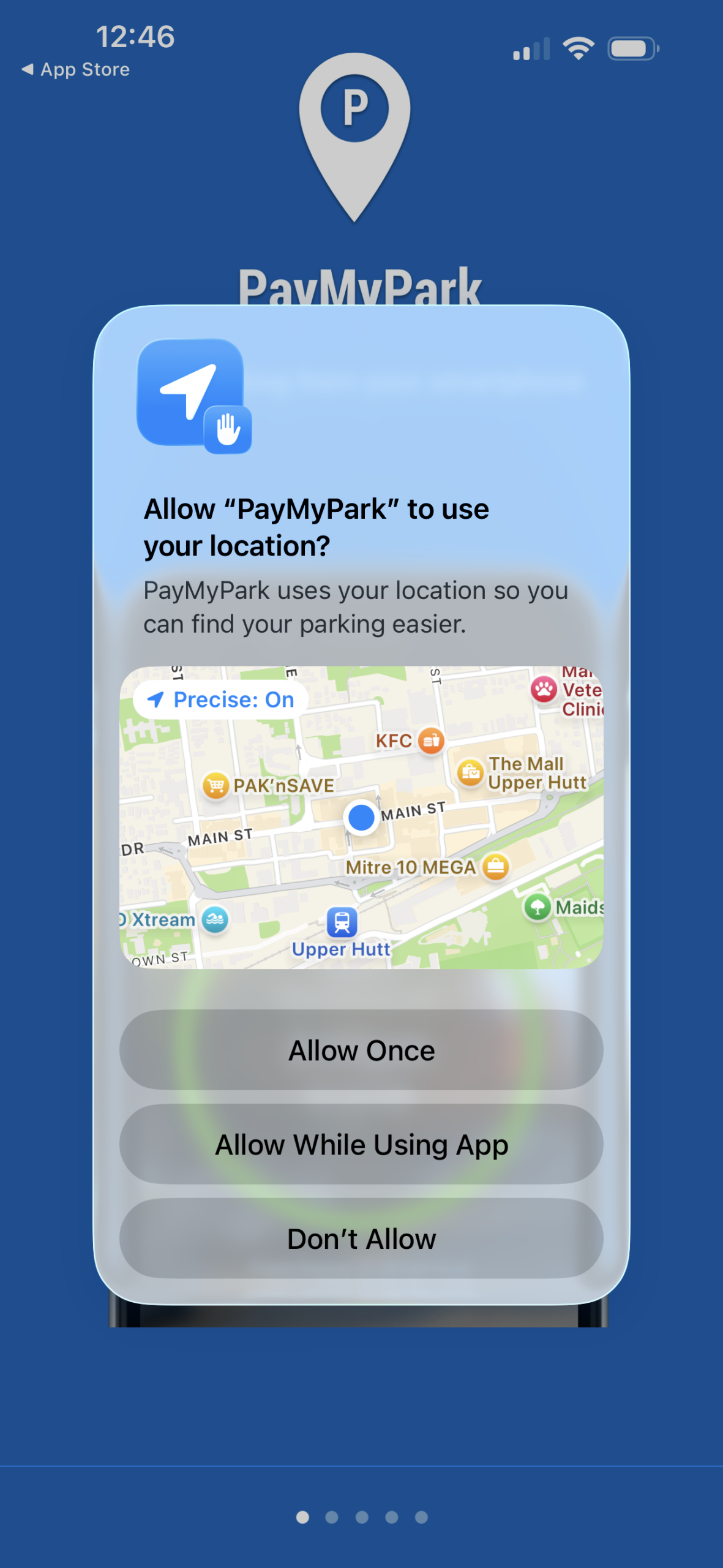
Once installed, open PayMyPark and allow any basic permissions to enable app features. For example, notifications if you’d like reminders before your parking expires.


Step 3: App features
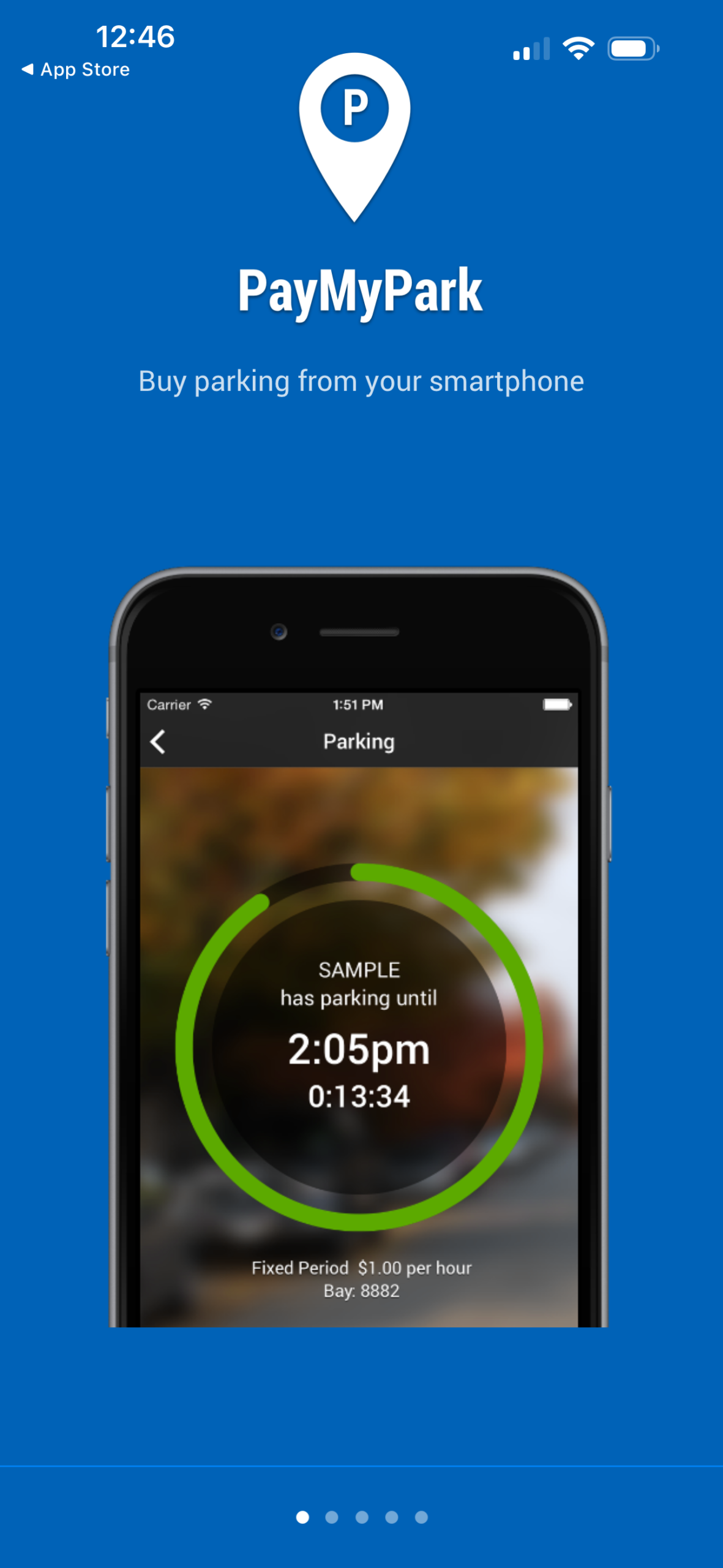
The app will display several features, and swipe right until it prompts you for your location.
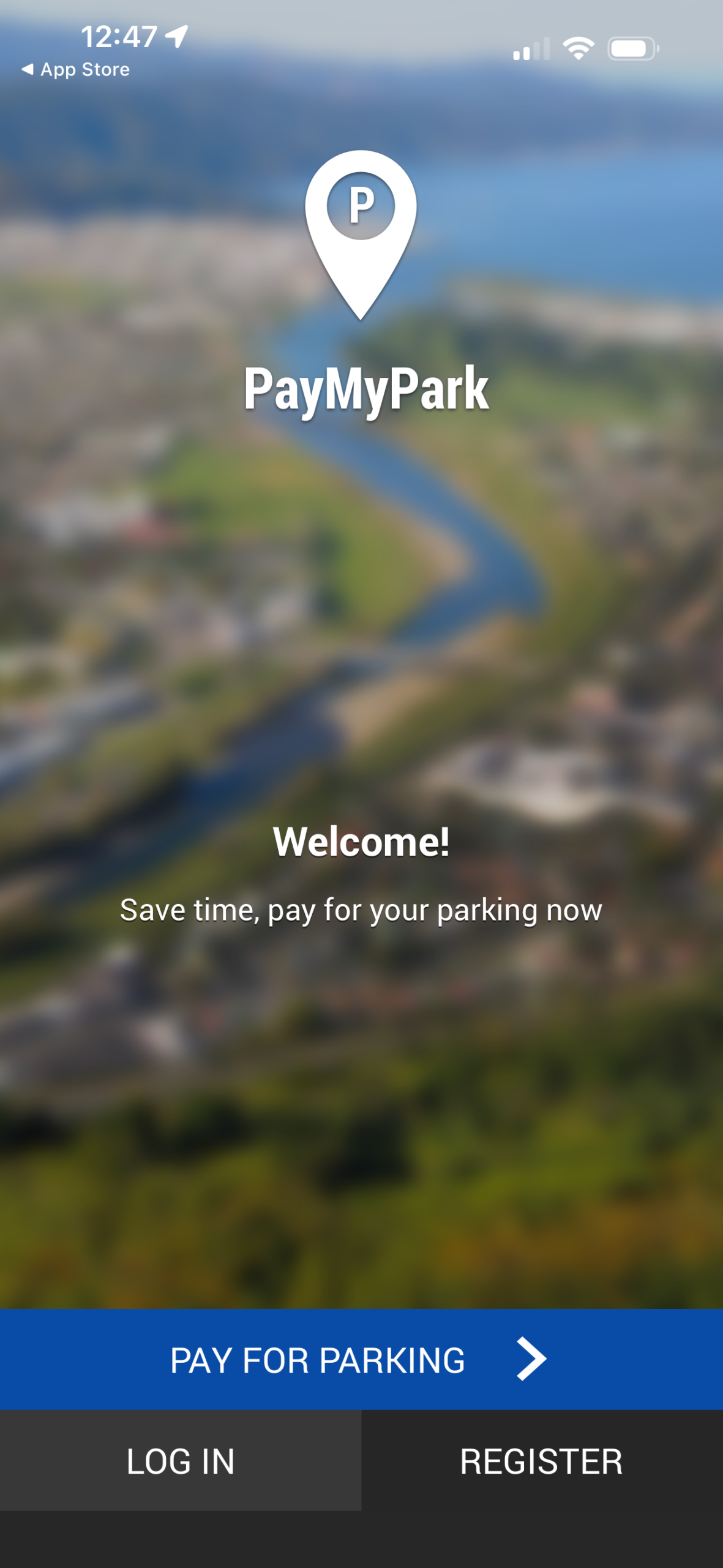
Step 4: Choose sign up
You can use the app without signing up, but signing up unlocks features like saving your vehicle and payment details, so parking is faster next time. Tap Register
Step 5: Sign up & verify
Follow the prompts to enter your details. After signing up, it will prompt you to sign in. You need to verify your account beforehand by opening the link in the confirmation email (see your email inbox).
Step 6: Vehicle number plate
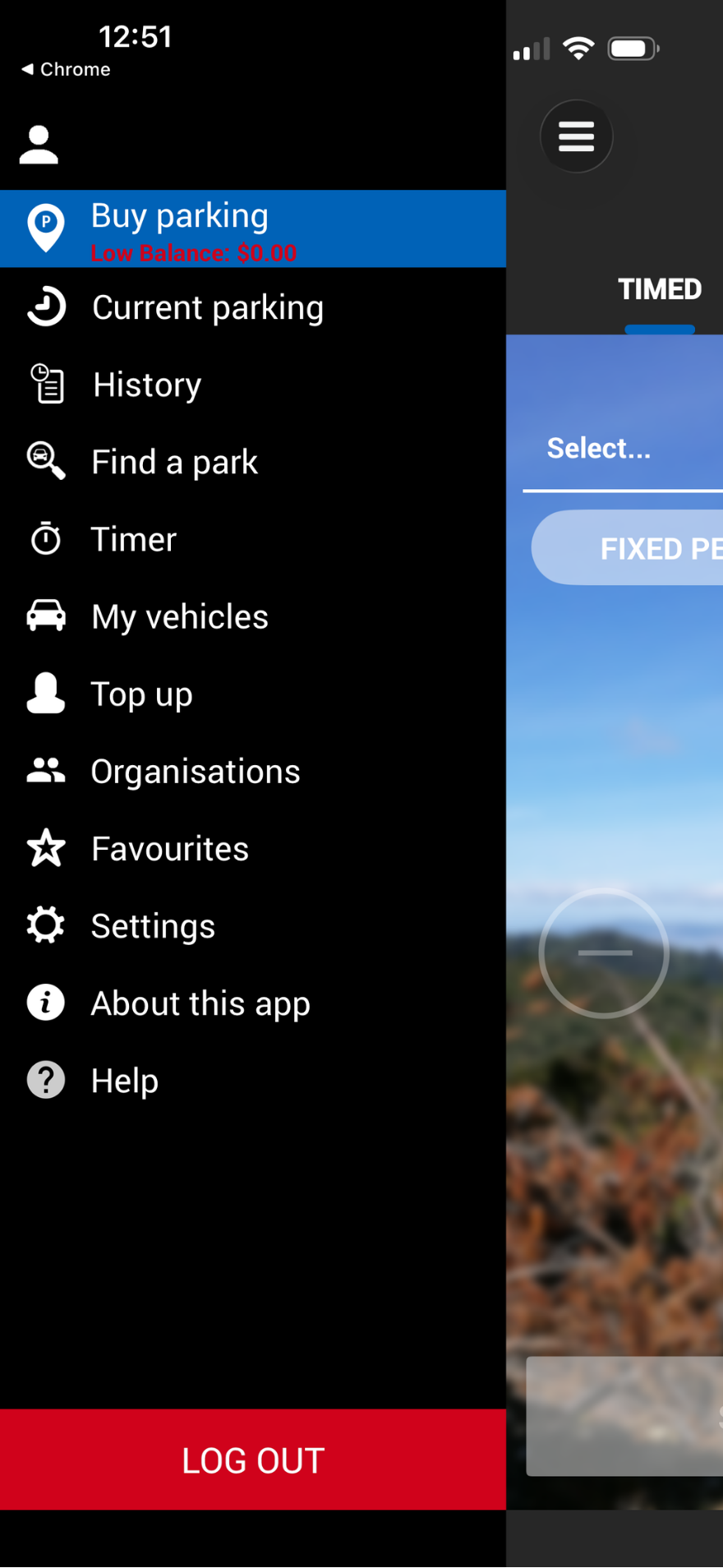
Once signed in, you will need to add your vehicle registration/number plate. Tap the menu icon in the top left corner and go to “My Vehicles”.
There won’t be any vehicles, but you can add yours by tapping the plus icon in the top right corner.


Step 7: Add credit
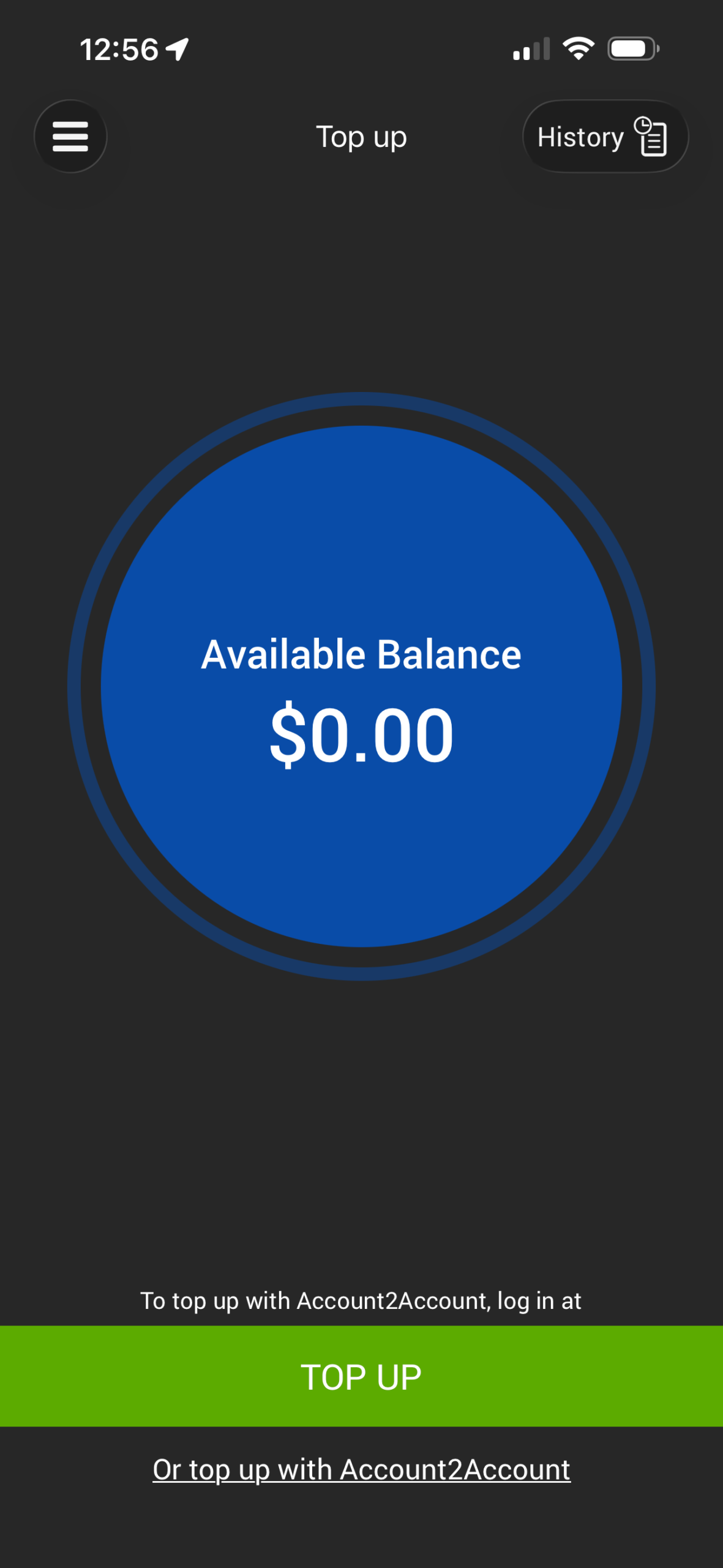
Before you can park, you need to add money to the app. Tap on the menu icon in the top left corner, and tap on “Top up”. Your balance will be zero, so tap the green button and select the top-up amount.
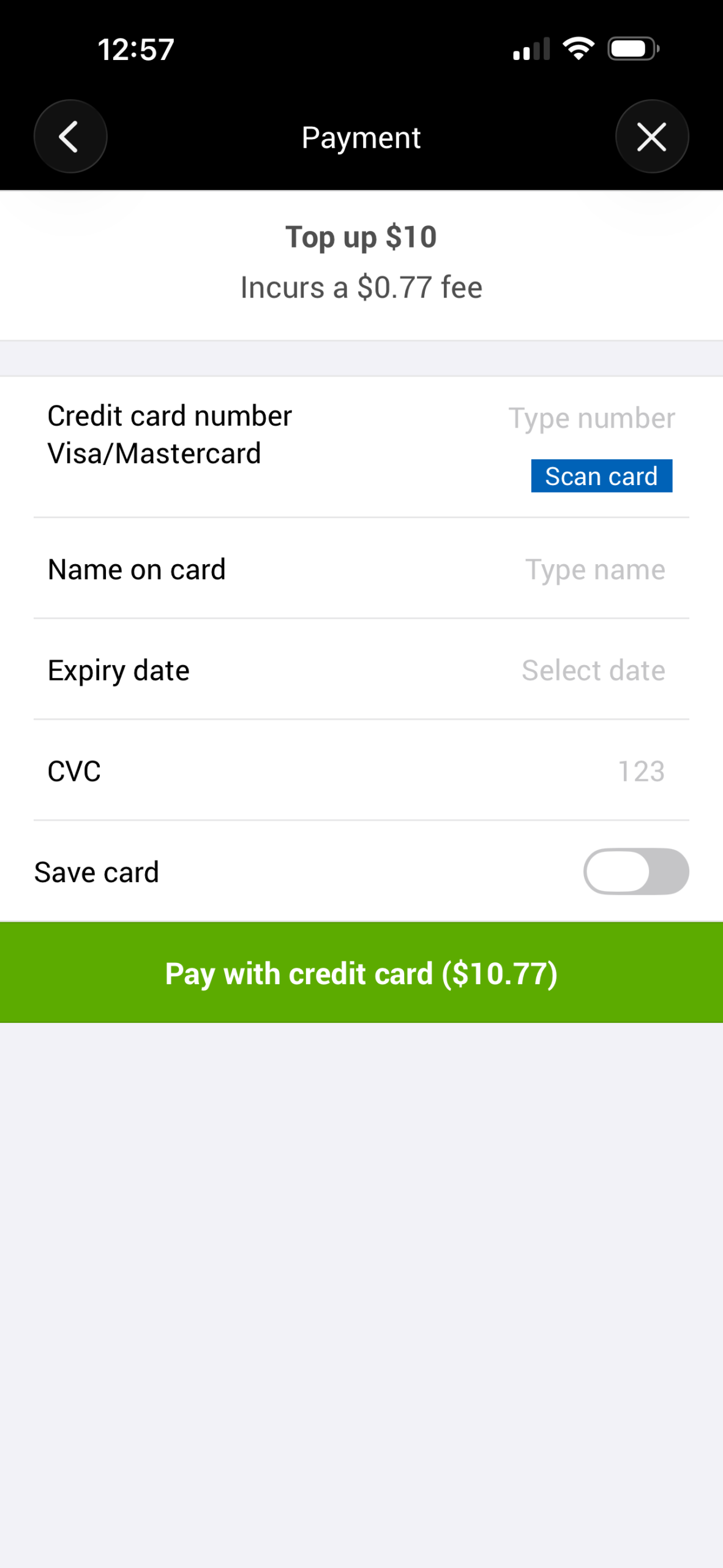
Follow the on-screen prompts for payment, and you have the option to save the card details.
Note: There is a small fee for credit card payments.
Follow the on-screen prompts for payment, and you have the option to save the card details.
Note: There is a small fee for credit card payments.
Step 8: Parking session
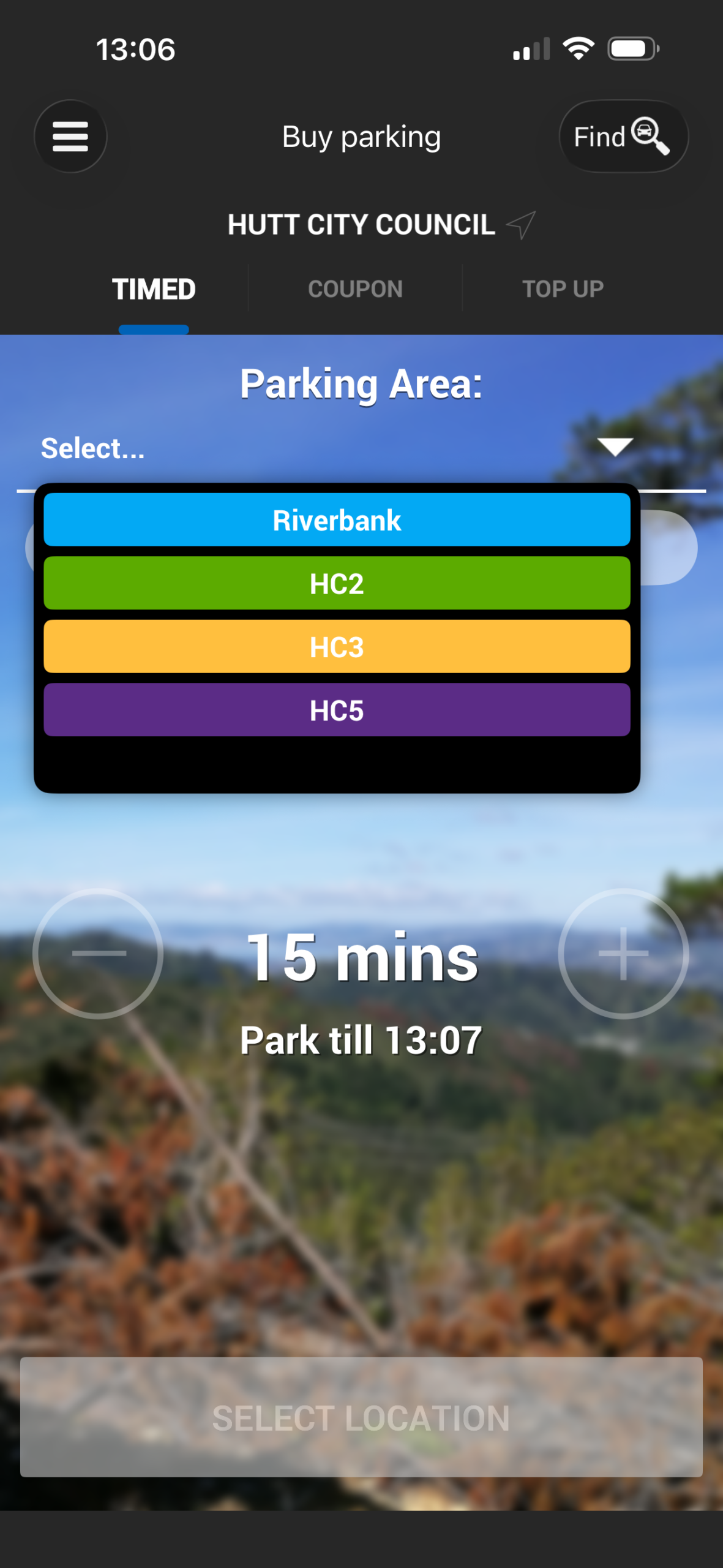
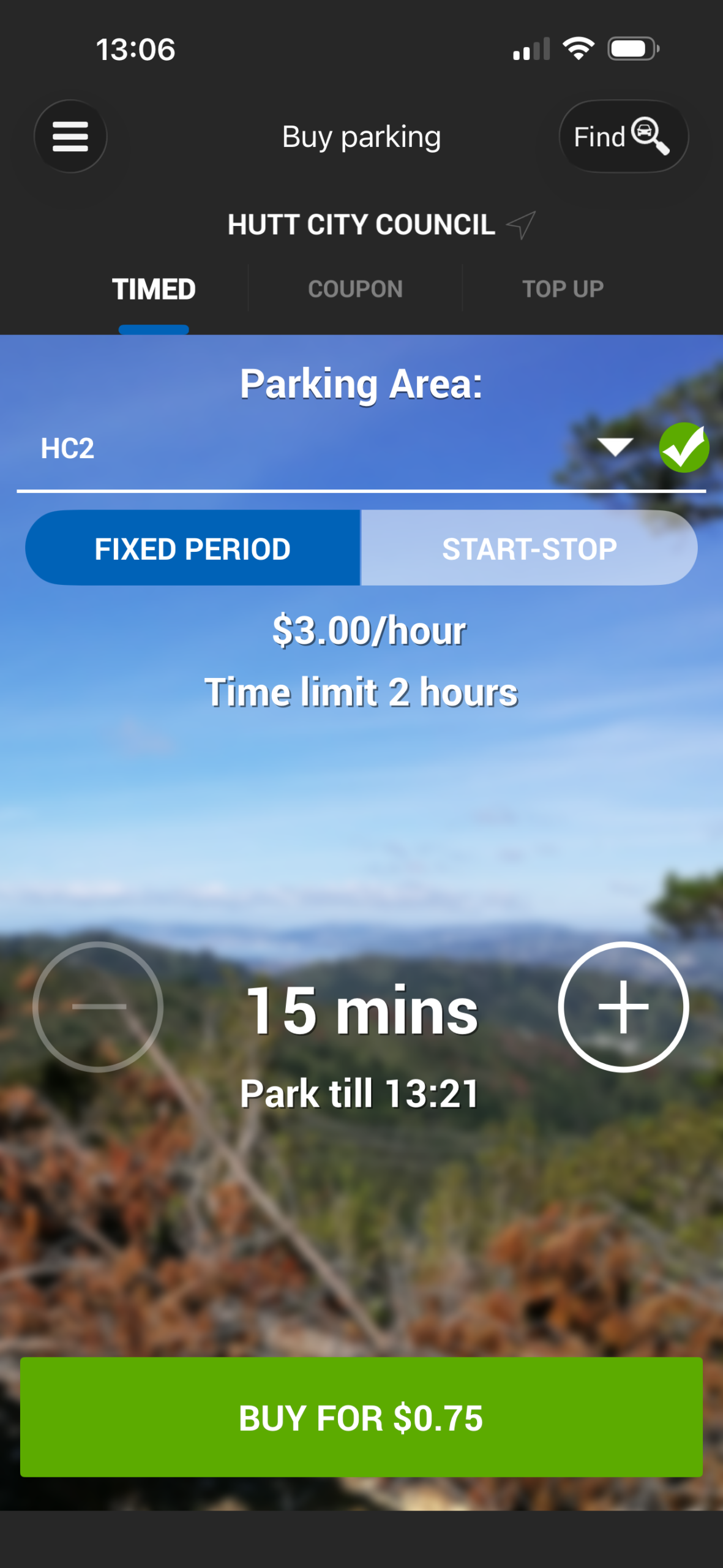
When you arrive at your destination, open the app and follow the prompts to:
a) Choose your parking area/location
b) Choose how long you want to park
c) Confirm and start the session
a) Choose your parking area/location
b) Choose how long you want to park
c) Confirm and start the session
Step 9: Extend your session
If you’re staying longer, you can extend the session from your phone without walking back to the vehicle. You still have to abide by the maximum park time.

Frequently Asked Questions
My number plate won’t save?
Double-check spacing and letters/numbers. Plates should be entered exactly as shown on your vehicle.
I didn’t get the verification email?
Check your junk/spam folder and make sure the email address is correct.
I can’t find the right parking location?
Make sure location services are enabled for the app, or search for the location/zone manually if available.